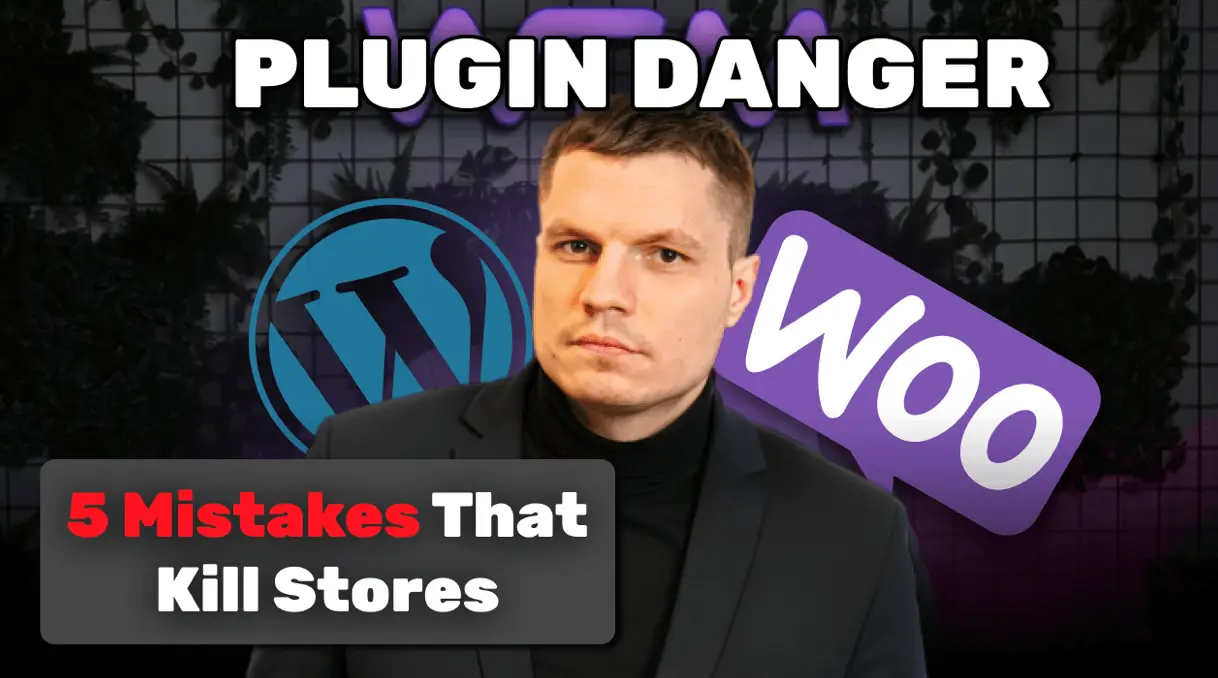
If you run a WooCommerce store, you’re likely familiar with the constant battle of managing plugins. While plugins can add powerful functionality to your store, WooCommerce plugin issues can quickly spiral out of control and negatively impact performance. As someone who has worked with a variety of WooCommerce stores, I’ve seen firsthand how poorly managed or incompatible plugins can lead to slow load times, security vulnerabilities, and database clutter.
1. How WooCommerce Plugin Issues Can Significantly Slow Down Your Website
Every plugin adds code that needs to load on your site. Some are lightweight and efficient others are not. When plugins load unnecessary scripts and styles on every page (instead of just the ones where they’re needed), your site can quickly become slow and sluggish.
Reasons Behind the Slowdown:
- Poorly coded plugins can cause slowdowns.
- Some plugins load unnecessary CSS and JavaScript files on every page of your store.
- Many plugins should only load their resources on specific pages (like the checkout or cart page), but they often load them across the entire site.
To manage this, use a plugin like Query Monitor to see how each plugin affects performance. Disable them one by one and monitor the impact. It’s a simple, effective way to identify what’s slowing things down.
2. How Plugins Leave Behind Junk Data in Your WooCommerce Database
When you uninstall a plugin, its data doesn’t always go with it. Over time, your database can fill up with unused entries and tables, making your site slower and backups heavier.
Cleaning your database regularly with a tool like WP Advanced Database Cleaner Pro can help keep things running smoothly and reduce clutter left behind by old plugins.
3.How WooCommerce Plugin Issues Can Introduce Security Vulnerabilities
Not all plugins are created equal when it comes to security. Even well-known, widely used plugins have faced serious vulnerabilities in the past. If a plugin isn’t maintained properly or doesn’t receive regular updates, it can leave your store open to potential threats.
- To keep your WooCommerce store secure:
- Only use plugins from reputable developers or marketplaces
- Keep all plugins up to date -outdated code is a common entry point for attackers
- Use a trusted security plugin like Wordfence or iThemes Security
- Avoid nulled or pirated plugins -they often contain hidden malware and backdoors
Your store holds sensitive customer data, so staying proactive about plugin security isn’t optional it’s essential.
4. Plugin Conflicts in WooCommerce: Common Issues and How to Avoid Them
Installing a new plugin means adding new code — and that code might not play nicely with what you already have. Conflicts between plugins can break your layout, cause errors at checkout, or even crash your site entirely.
The best way to avoid this? Test everything in a staging environment first
Don’t install plugins directly on your live site without checking compatibility. And after installing, test all the main features of your store to make sure everything still works.
5. How WooCommerce Plugin Issues Impact Server Resource Usage
WooCommerce is already demanding on your server by default. When you start adding too many plugins especially those that run background processes or heavy AJAX calls—it can overload your hosting environment. This often leads to slower site performance and higher hosting costs, particularly if you’re on shared hosting or a budget VPS plan.
Common Mistakes Store Owners Make:
- Trying to replicate full ERP or CRM systems using WooCommerce plugins instead of using dedicated platforms
- Adding too many customer-facing features directly into the storefront, which bloats the frontend and slows down load times
- Installing 30 or more plugins without properly testing their impact on server load or compatibility
What to Avoid
Don’t turn your WooCommerce store into an all-in-one platform. While plugins add convenience, relying on too many of them for heavy functionality will eventually hurt your store’s performance and scalability.
Smarter Alternatives
- Use APIs to connect external systems like ERP or inventory management platforms rather than trying to run everything through WooCommerce
- Handle email marketing with external tools like Mailchimp or Klaviyo instead of using bulky in-store solutions
- Integrate a real CRM solution (like HubSpot or Zoho) instead of trying to build one directly into WordPress
Keeping your setup lean and focused ensures your store remains fast, stable, and easier to maintain in the long run.
Tips for a Healthy WooCommerce Store
Plugins are powerful tools, but they come with trade-offs. A lean, well-maintained setup will always outperform one bloated with unnecessary features.
Here’s how to keep your store fast, secure, and stable:
- Only install plugins you absolutely need
- Test plugins in a staging environment first
- Keep your plugins up to date
- Use tools like Query Monitor and WP Advanced Database Cleaner
- Invest in quality hosting with proper security (e.g., Imunify360)
- Work with experienced developers — not just someone who watched a few YouTube tutorials
Your storefront should be efficient, not overloaded. Don’t try to turn WooCommerce into a full ERP or CRM; use the right tools for each job, and your site will perform better and scale more easily in the long run.
Have questions or need expert help? Get in touch with us here – our team is ready to jump in and get your store back on track.